

Shell
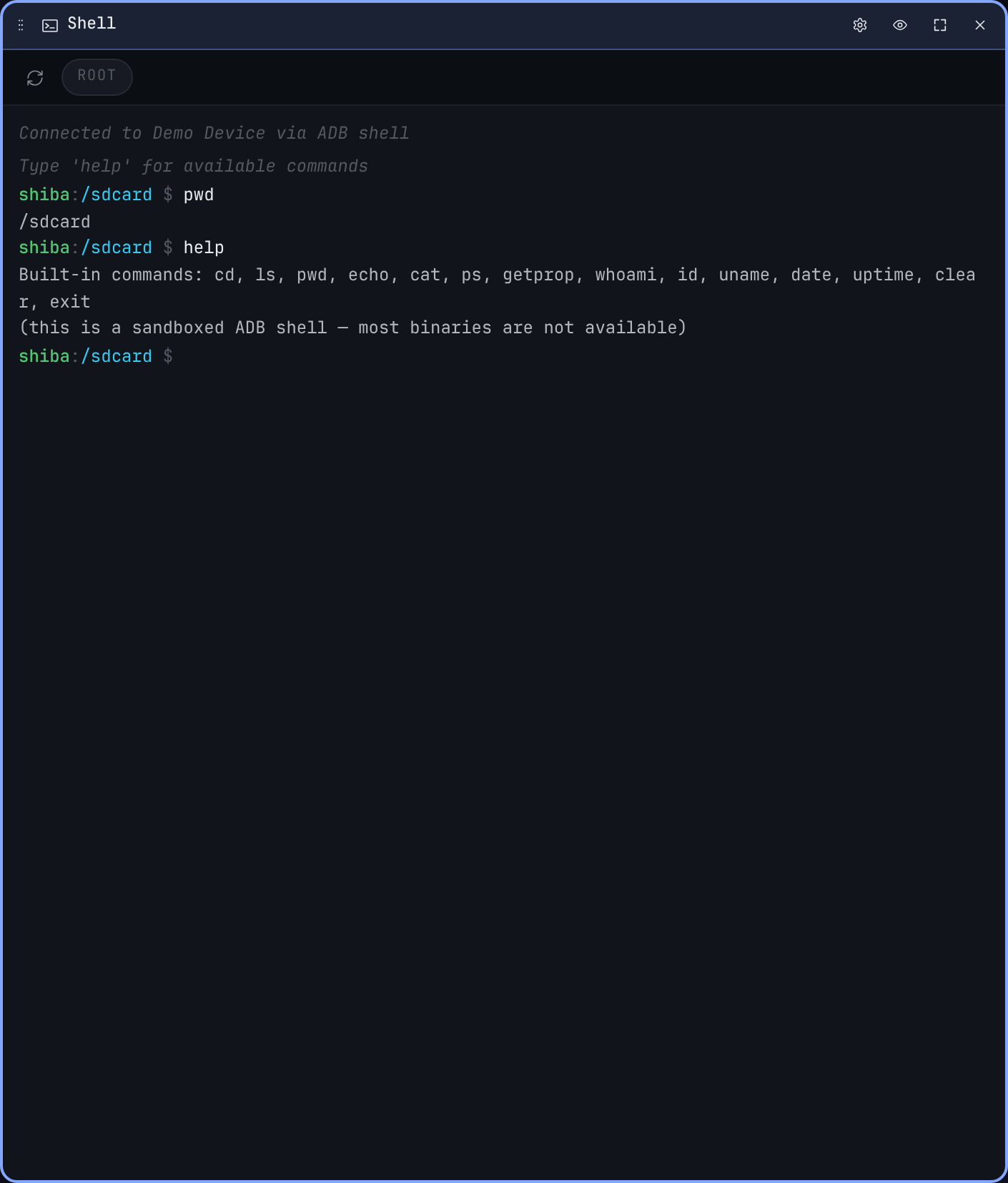
The Shell widget is an interactive ADB shell tied to one tile. Each tile owns its own channel — opening two Shell tiles gives you two independent sessions, with separate working directories and history.
Running commands
Type a command at the prompt and hit Enter. The output streams into the scrollback as it arrives, the same way adb shell would render it in a terminal.
The shell is a regular interactive sh channel on the device, so anything the device's shell understands works — pipes, grep, find, multi-line commands, etc. There is no remote bash unless your device ships one.
History
↑/↓walks history backwards / forwards.- History is per-tile and persists across reloads.
Ctrl+Lclears the visible scrollback (history is preserved).
Working directory
The first prompt drops you in the device's home (commonly /sdcard). Use cd like normal — the prompt updates to reflect the new location, but only when the cd actually succeeds on-device (cd /no/such/dir leaves the prompt where it was). The default starting path is configurable in the per-widget settings modal (the cog in the header).
Dragging in a path
Drag a file row from the Files widget anywhere into the terminal area to paste its device-side path at the prompt caret. Useful for piping a path into cat, ls, md5sum, etc. without retyping. The file itself stays on the device — Files only triggers a Pull-to-laptop download when the drop lands outside the app.
Tab completion
Press Tab to complete the path component you're typing against the device's filesystem. On the simulator, completion runs against the in-memory fake FS; on a real device, the widget side-channels a ls -1 -p -A <dir> over a separate ADB shell subprocess, then:
- A single match extends the word in place (with a trailing
/for directories so you can keep tabbing into the subtree). - Multiple matches extend to the longest common prefix and print the candidates inline.
Completion runs asynchronously over USB / WDP, so there's a small delay (typically <100 ms) before the input updates.
Built-ins
The widget recognises a small set of host-side built-ins that don't go over the wire:
clear(aliascls) — equivalent toCtrl+L.help— list built-ins.help <name>prints details for one.exit— close the channel. The next command reopens it automatically.
Everything else is forwarded to the device.
Simulator behaviour
When you're connected to the simulated stream, the Shell widget drops you into an in-memory fake (lib/shellSim.ts) that recognises the most common commands — pwd, ls, cat, whoami, uname — and simulated filesystem paths under /sdcard/. Use it to poke around the widget without a phone.
Per-widget settings
- Home directory. Override the starting
cdwhen the tile mounts. - Font size. Bumps the shell text without affecting the rest of the dashboard.
Changes persist per-tile via localStorage.