

Logcat
The Logcat widget streams the device's system log live. Multiple Logcat tiles can co-exist on the same device with independent filter and pin state, so you can keep a global view alongside a tag-scoped one.
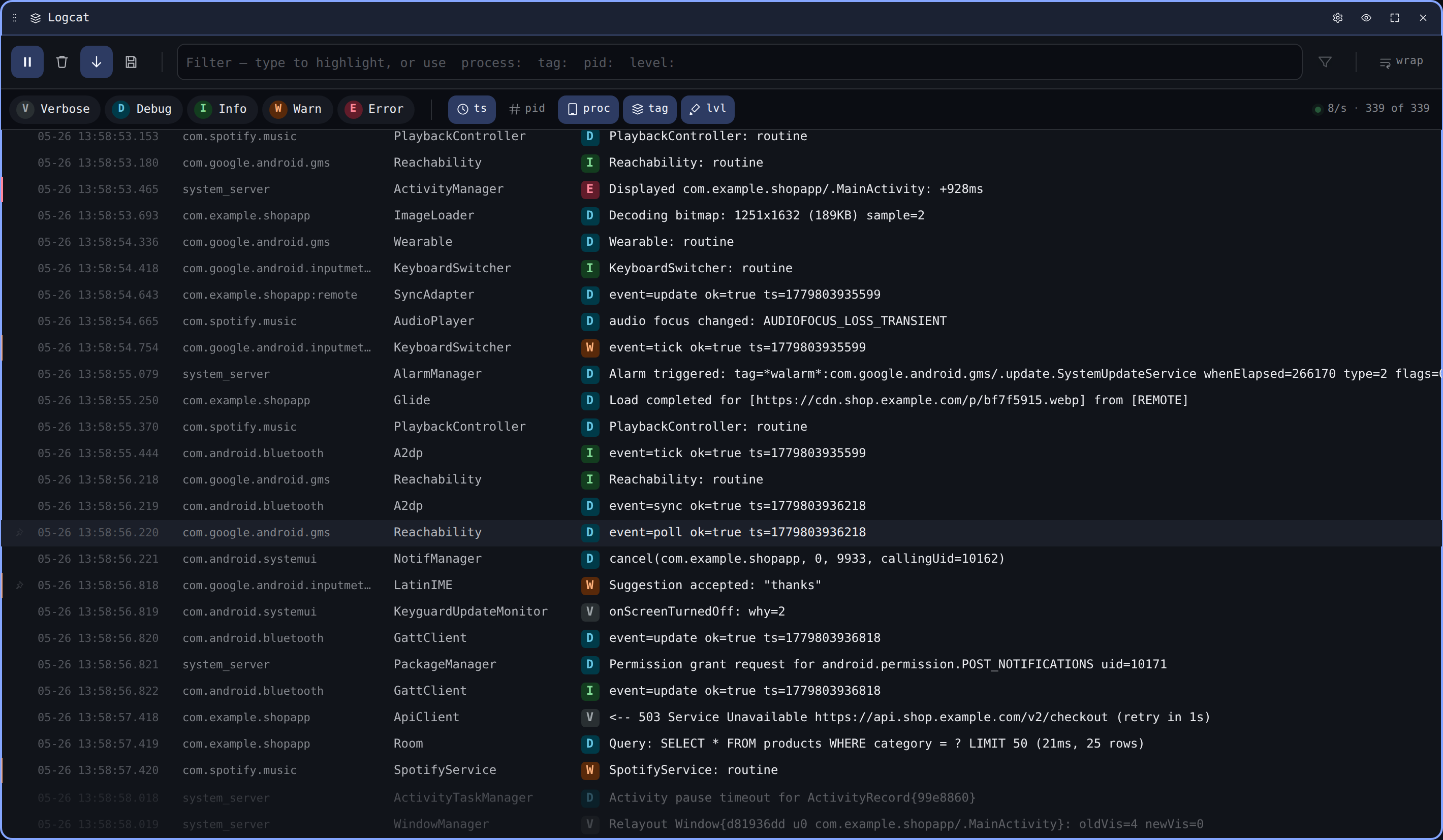
Filter chips
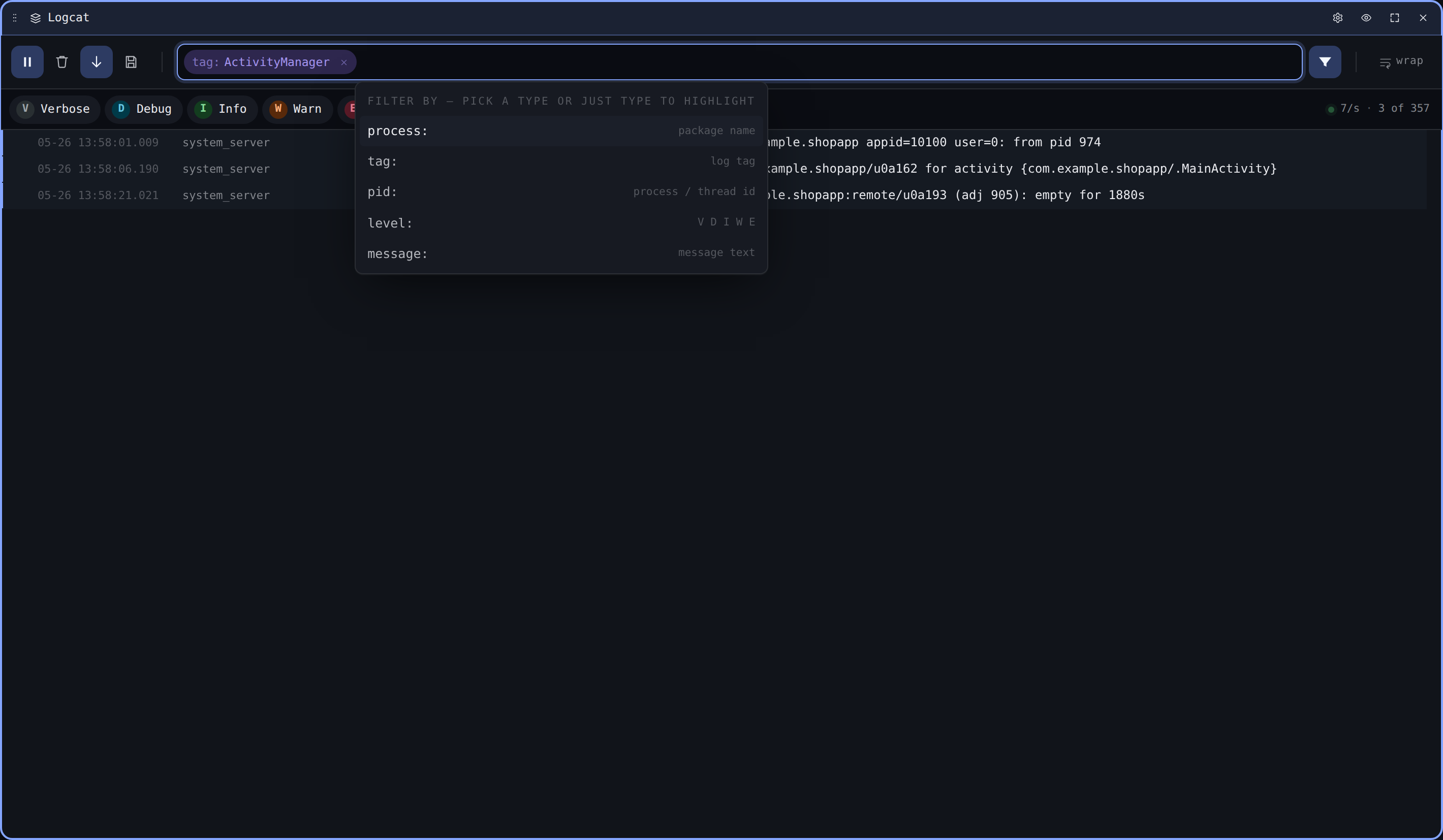
Focus the filter bar (or press /) to bring up the autocomplete. All five filter types appear as discoverable starters:
| Prefix | Matches | Example |
|---|---|---|
process: | Package name (substring) | process:com.example |
tag: | Logcat tag (substring) | tag:ActivityManager |
pid: | Process or thread id (exact) | pid:1234 |
level: | Log level letter | level:E |
| (no prefix) | Search across message + tag + package | OutOfMemoryError |
Tab accepts the highlighted suggestion, Enter commits the chip, Backspace on an empty input removes the previous chip. Adding the first chip auto-enables show only matches; clear all chips to see everything again.
Find-next-match
Click a filter chip to activate it for navigation — the first matching row is highlighted (the active match) and the up/down buttons next to the chip step through the rest. ⌘G / Ctrl+G advances; ⇧⌘G / Ctrl+Shift+G goes backward. Pressing ⌘G without an active chip falls back to activating the rightmost chip, so you can chain add filter → ⌘G without clicking.
Stepping with ⌘G only scrolls when it has to: if the next match is already on screen the viewport stays put and the highlight moves to it; if the match is off-screen the row is centred.
Clicking a log row selects it the same way — the row gets the active-match highlight. From there, ⌘G resumes navigation in the active filter's match list. Toggling show only matches keeps the active row at the same on-screen position; rows scrolled off the top or bottom snap to the nearest edge of the viewport.
Level pills
The five level pills (V/D/I/W/E) above the log show the live rate per level.
- Click a pill to toggle that level on / off.
- Double-click to solo — turns every other level off.
- A struck-through pill means the level is hidden.
Pinned rows
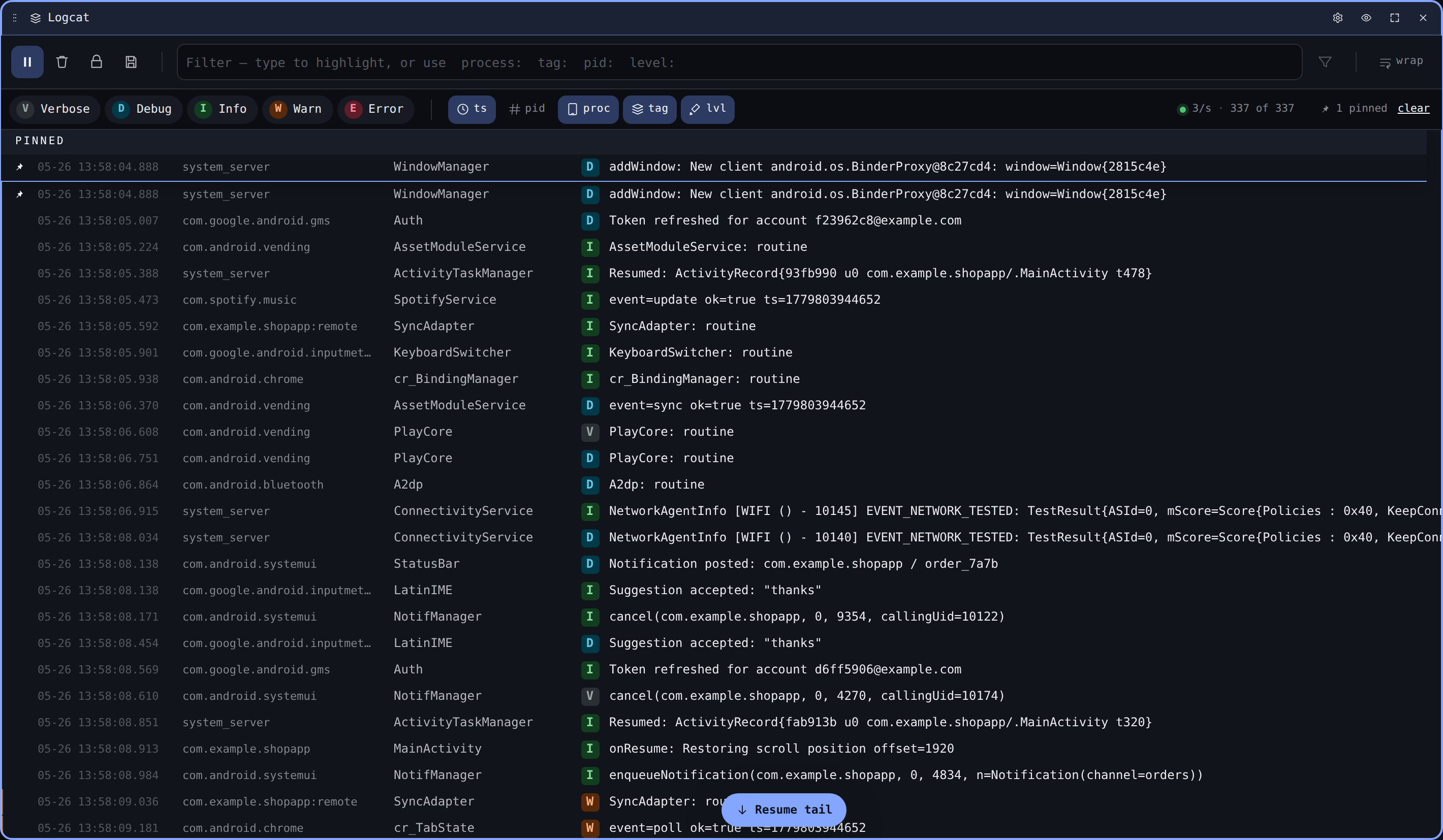
Hover a row and click the pin icon to stick it to the top of the log. Pinned rows survive scrolling and stay visible even when their original position scrolls off-screen. Click the pin again to unpin.
Crash collapse
Stack traces fold under their first line by default. Click Show stack trace on a folded row to expand it. The collapse heuristic recognises both Java exceptions and ANR / native traces.
Heatmap gutter
A 60-cell bar on the left of the log area buckets the last minute of activity into one cell per second. Cell brightness scales with rate; click any second to scroll the log to that point in time.
Wrap mode
Off by default — long messages scroll horizontally so timestamps stay aligned. Toggle wrap in the toolbar (or via the per-widget settings modal) to wrap long messages within the row.
Pause and clear
Spacetoggles pause. While paused, incoming entries queue up and flush in batch when you resume.⌘K/Ctrl+Kclears the visible buffer (the upstream stream keeps going).
Timestamp format
The timestamp column defaults to the full Android logcat shape, MM-DD HH:MM:SS.mmm. On narrow tiles you can trade precision for horizontal space from the per-widget settings modal:
| Format | Example | Notes |
|---|---|---|
Date | 05-25 20:41:09.261 | Full date + time + milliseconds (default) |
Time | 20:41:09.261 | Drops the date — handy when every line is same-day |
Clock | 20:41:09 | Drops the date and milliseconds — the most compact |
The column width tracks the chosen format, so shorter formats hand the reclaimed space back to the message. The timestamp, PID/TID, and process columns also render a step smaller than the message so the eye lands on the message first.
Per-widget settings
The cog in the tile header opens a settings modal for this Logcat instance. From there you can flip wrap, change row density, pick the timestamp format, edit the default level mask, or rename the tile. Changes persist per-tile.
Keyboard shortcuts
Shortcuts only fire while the widget owns focus, so two Logcat tiles never toggle each other.
| Key | Action |
|---|---|
Space | Pause / resume the live stream |
/ | Focus the filter input |
⌘F / Ctrl+F | Focus the filter input (same as /; cross-widget fallback when no widget is focused) |
⌘G / Ctrl+G | Next match for the active chip (or activate the rightmost chip) |
⇧⌘G / Ctrl+Shift+G | Previous match for the active chip |
⌘K / Ctrl+K | Clear the log buffer |
? | Open the in-app shortcut reference |
Esc | Close any open overlay |
Press ? in-app for the always-current list.