

Files
The Files widget is a two-pane file browser over the ADB sync protocol — the same protocol adb push and adb pull use under the hood. Browse the device, pull files out by drag-and-drop, push files in by dropping them onto the pane.
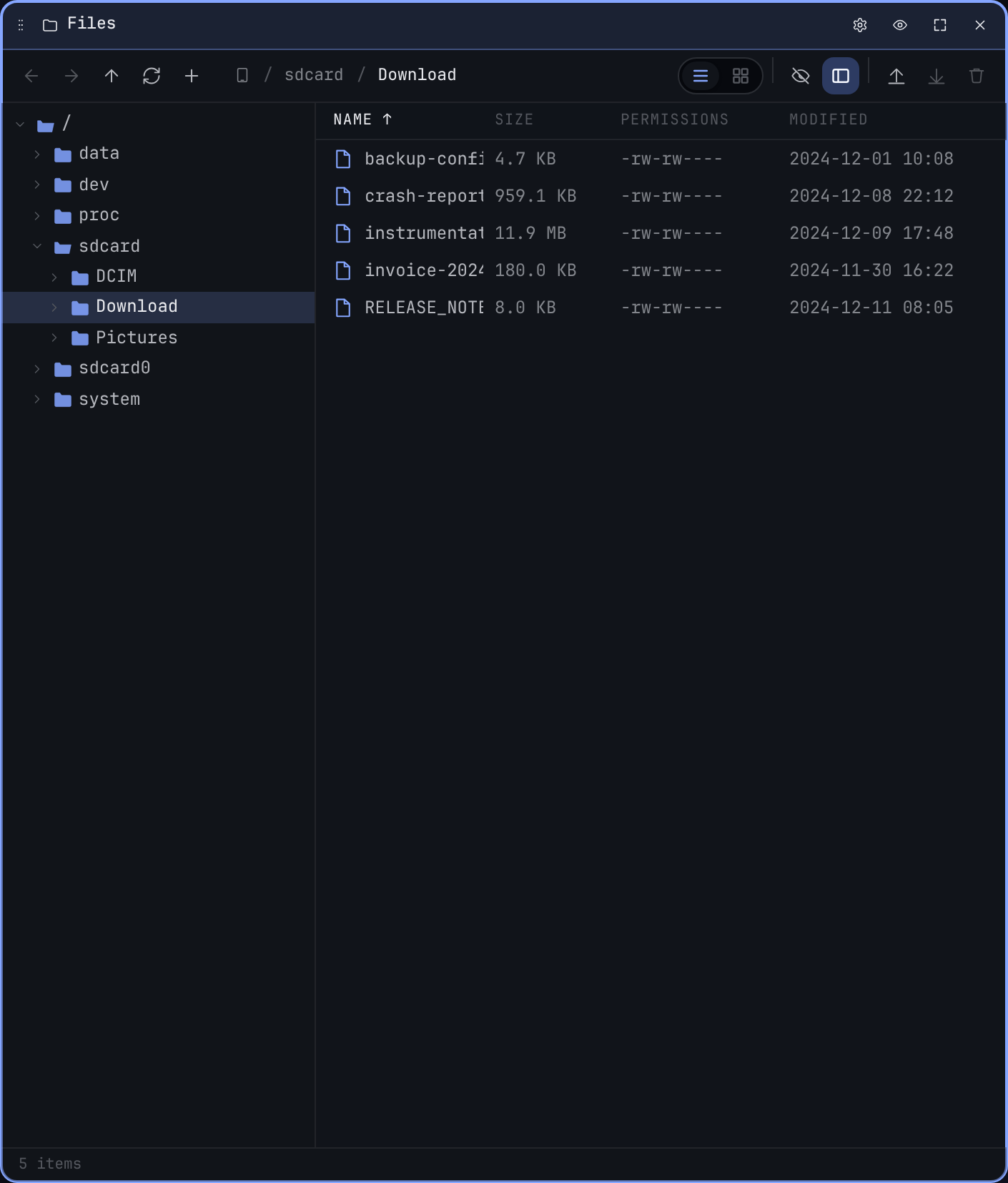
Browsing
- The left pane is a directory tree, expanding lazily as you click.
- The right pane is the file listing for the focused directory, with type, size, and modification date.
- The breadcrumb at the top shows the current path; click any segment to jump.
The default starting path is /sdcard/Download. Override it in the cog modal.
Pulling files (device → laptop)
Drag any file or directory from the right pane onto your operating system's file browser, the desktop, or a folder. The widget streams the file out via the sync protocol; for transfers ≥1 MB a progress bar appears in the lower-right.
You can also right-click → Pull to… to choose a destination explicitly.
Pushing files (laptop → device)
Drop files (or directories) from the OS onto the right pane to push them into the focused directory. The widget queues them and streams them up, showing per-file progress. Existing files are overwritten only if you confirm.
Drag onto other widgets
Files rows are draggable onto two other widgets in the dashboard:
- Shell. Drop a row onto a Shell prompt to paste the file's device-side path at the cursor — handy for piping a path into any command without retyping it. The file is not pulled to your laptop in this case.
- Screen Mirror. Drop a row onto the Mirror surface to open the file on the device (APK install or
am start VIEW). See the Screen Mirror page for the full handoff.
In both cases the in-app drop suppresses the default Pull-to-laptop behaviour — only OS-level drops (desktop, Finder, Explorer) trigger the download. Dropping a .apk onto Mirror installs it via the same pm install pipeline as a double-click — the install progress strip appears on the Files widget (matching the double-click UX), not on Mirror.
Keyboard
Within the Files widget body the keyboard works as you'd expect:
↑/↓move the selection up / down the list pane.←collapses (in the tree pane) or walks up a directory (in the list pane, when nothing is selected).Enteropens the focused entry — directories become the new cwd, files trigger an open-on-device.Delete(orBackspacewhen one or more entries are selected) opens the same confirm-delete dialog as the right-click → Delete menu entry. The Files widget'sDeleteshortcut takes precedence over the dashboard's tile-delete shortcut, so deleting selected files never accidentally removes the entire Files tile.
Per-widget settings
- Starting path. Where the widget mounts.
- Hidden files. Show / hide dot-files.
- Sort. Name, size, or modified time.
Limitations
- WebUSB throughput tops out around 30–60 MB/s on USB 3 cables. Multi-GB pushes are workable but not as fast as a native
adb push. - Android scoped-storage rules apply. App-private directories under
/data/data/<pkg>/aren't readable on production builds without root.