

Dashboard & layout
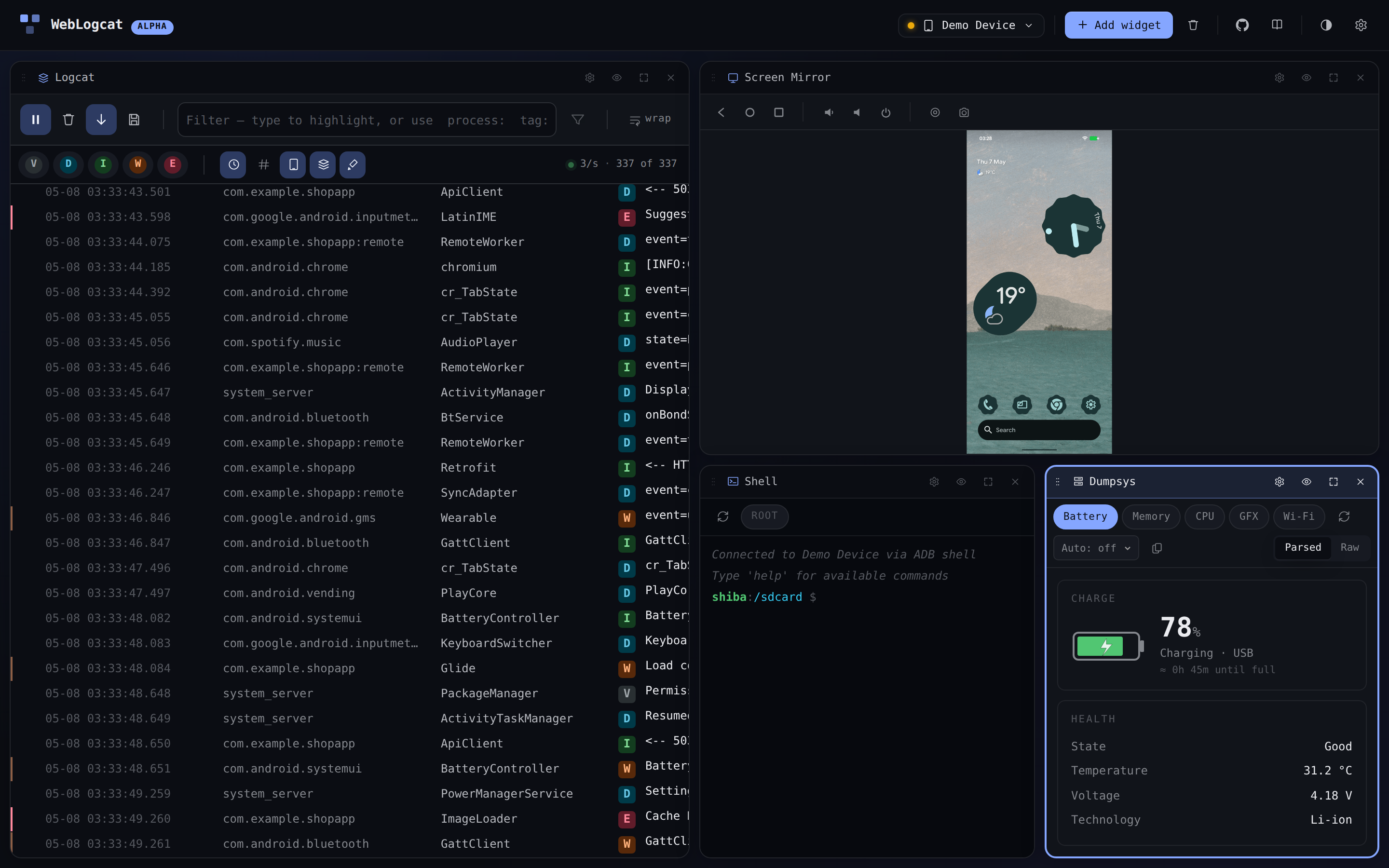
The connected app is a dwindle binary-tree layout of widget tiles, the same family of layouts you'd find in tiling window managers like Hyprland. Every tile has the same chrome — a header, an optional toolbar, the widget itself, and a corner grip — and they share every pixel of available space.
Adding and removing widgets
- + Add widget in the topbar opens the palette. Picking a kind splits the focused tile in two, with the new widget occupying half the previous space.
- × Close in a tile's header removes it. The surviving sibling expands to fill the freed area.
- Clear layout empties the dashboard back to its empty CTA. Useful when you want to redraw from scratch.
Rearranging
- Swap by dragging the header. Grab a tile by its header — the tile itself follows the cursor (at ~40% opacity so you can still see the drop zone underneath) with the same finger-on-tile grip you established on pointerdown — and drop it on another tile. They swap positions in the tree without resizing. Drop near an edge to split that side instead of swapping. The layout doesn't mutate until the drop fires — the cursor-follow is purely a visual preview.
- Drag affordances. The dragged tile wobbles slightly (iOS-icon-edit-mode style) and the inter-tile gap widens while a drag is active so the drop zones read more clearly. The wobble + gap bump are skipped in Performance mode (Global settings → Appearance) since they rely on the same layout transitions Performance mode disables; the dragged-tile transparency still applies so aiming a swap stays equally readable.
- Resize the seam. Hover the seam between two tiles; the cursor turns into a resize handle. Drag to redistribute space between siblings.
- Maximize. The square icon in a tile's header pops it to fill the entire dashboard. Click again (now a Restore icon) to drop back.
- Hide the chrome. The eye icon in the header cycles between show everything → hide the toolbar → hide the toolbar and the header. Use it when you want a tile to read like an embedded panel.
Keyboard
The dashboard reads a small set of global shortcuts. None of them fire while the focus is inside a text field, so typing into a Logcat filter or Shell prompt is never affected.
| Key | Action |
|---|---|
⌘E / Ctrl+E | Open the quick-add menu (see below). |
⌘C / Ctrl+C | Copy the focused tile — its kind and its settings. Skipped when you have text selected, so copying a Logcat row or a Scripting console line still works. |
⌘V / Ctrl+V | Paste the copied tile as a new widget. It splits the focused tile, just like + Add, and arrives pre-configured with the copied tile's settings. |
← ↑ ↓ → | Move the focused-tile ring to the spatially-adjacent tile. |
Backspace / Del | Remove the focused tile. Inside the Files widget, deletes the selected entry instead (same as right-click → Delete). |
⌘Z / Ctrl+Z | Undo the last layout-changing action. |
⌘⇧Z / Ctrl+⇧+Z | Redo. |
? | Open the keyboard-shortcut help dialog. |
Copy and paste a tile
⌘C / Ctrl+C copies the focused tile and ⌘V / Ctrl+V pastes it back as a brand-new widget of the same kind, pre-loaded with the copied tile's settings — duplicate a tuned Logcat filter set or a whole Scripting panel in two keystrokes. The clone splits the focused tile exactly like + Add.
Copy/paste only fires on the "bare" focused tile: if you have text selected (a Logcat row, a Scripting console line) the browser's own copy runs instead, pasting into a text field pastes the text, and inside the Screen Mirror the same keys still drive the device's clipboard. The tile clipboard is shared across all tabs of the same browser, so you can copy a tile in one tab and paste it into another — it stays within your browser, though, not across different browsers or machines.
Quick-add menu
⌘E opens a Spotlight-style floating menu anchored at the focused tile (or centred at the top of the dashboard when there isn't one yet). Three ways to pick:
- Press a widget's single-letter accelerator —
L(Logcat),S(Shell),D(Dumpsys),F(Files),M(Screen Mirror). - Use
↑/↓to cycle the highlight andEnterto confirm. - Click the row directly.
The More… row opens the full widget palette dialog with descriptions and capacity hints.
(The earlier prototype used ⌘N, but macOS treats ⌘N as a system-level "new window" shortcut the browser can't intercept. ⌘E is unbound on every major browser + platform combination.)
The menu dismisses on Escape, outside-click, or any successful pick. Widgets that are at their maxInstances cap (Screen Mirror is hard- capped at 1) are greyed out and their accelerator is ignored.
Undo and redo
- ⌘Z / Ctrl+Z undoes the last layout-changing action — adding a tile, removing it, swapping, resizing, maximize, clear-layout. The history buffer lives inside the tile grid; reloading the page persists the current layout but not the undo stack.
- ⌘⇧Z / Ctrl+Shift+Z redoes.
Persistence
Layouts and per-widget settings persist in localStorage, globally per dashboard — not tied to a device serial:
- The tree itself:
weblogcat-dashboard-v2. - Per-widget state: keyed by
weblogcat:settings:<tileId>:<kind>, so two Logcat tiles keep independent filter setups across reloads.
Because the keys are serial-free, your tiles and their settings stay put when you reconnect — including when the same phone reports a different serial over USB versus the Web Device Proxy, or when you plug in a different device entirely.
Sharing a layout via URL
The dashboard URL accepts a ?d=<encoded> query string that captures the current layout + tile settings. Clicking Share in the dashboard copies a link with the current state encoded. Recipients open the link, pair their own device, and land on your exact layout — chip filters and all.
TIP
URL state is read-forward compatible: WebLogcat keeps accepting older ?d= payload shapes so links you sent last month still resolve. See the note in release plan for the long-term contract.