

Scripting
The Scripting widget turns one shell script into a custom control panel. You write shell functions; you add controls that run them or feed them values. It's a Tasker-style toolbox for the workflows you repeat — "Package toolbox", "Performance lab", an app-debugger panel — without building a real app.
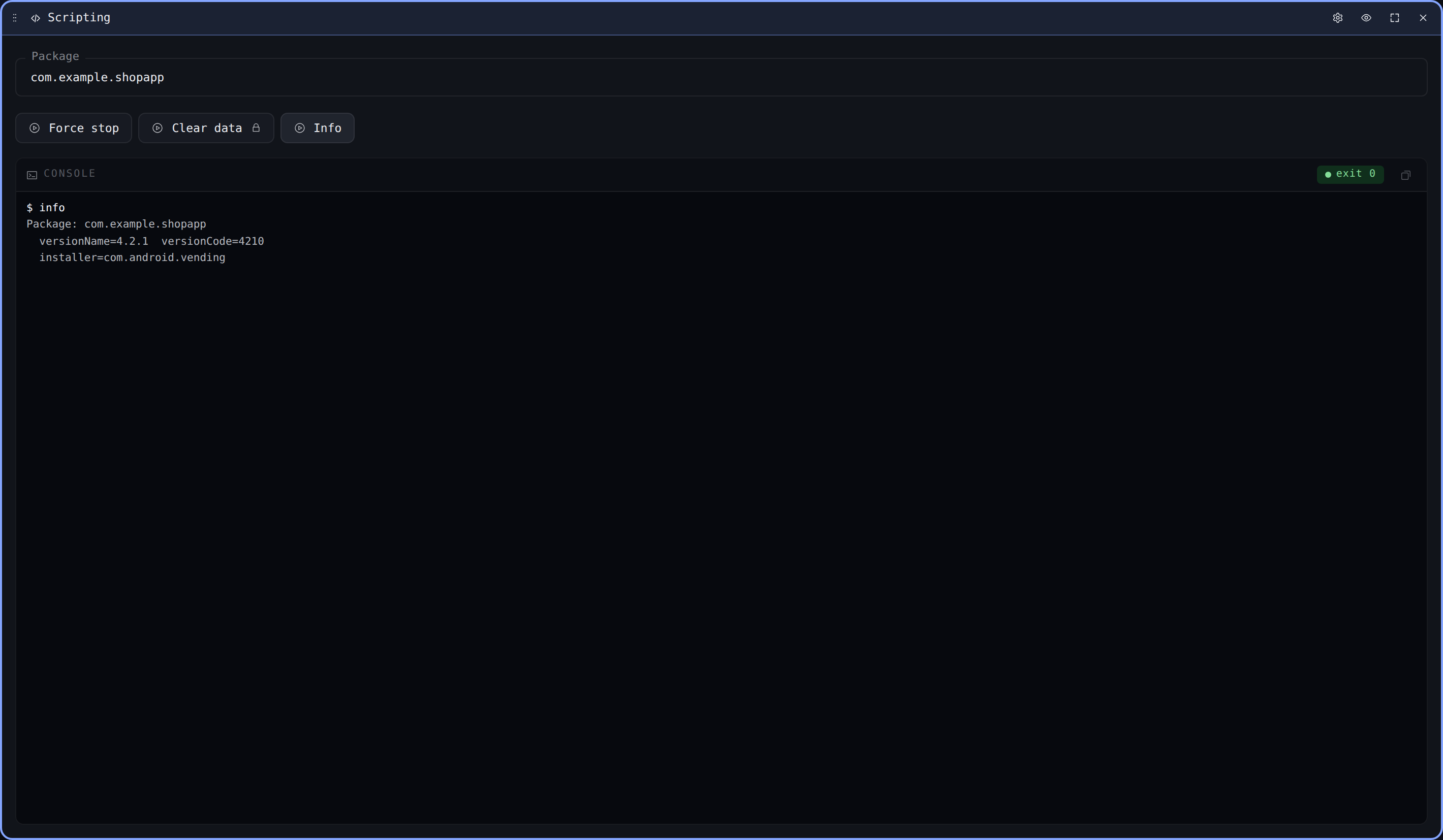
The mental model
One panel owns one script. Every control's label decides the name the script sees — there's no second naming step:
- An input labelled
Packageexports its value as the env var$PACKAGE. - An action button labelled
Force stopcalls the functionforce_stopwhen pressed. - A bound display labelled
Battery temperaturecallsbattery_tempand shows its output.
Names are derived deterministically — uppercased and snake-cased for variables, lowercased for functions (so Force stop → $FORCE_STOP as a value, force_stop() as a function). They use underscores, never hyphens, because the device shell (mksh) requires it.
Every input's current value is exported on every run, so any function can read any input. A $PACKAGE text field can drive a whole row of buttons:
force_stop() { am force-stop "$PACKAGE"; }
clear_data() { pm clear "$PACKAGE"; }
info()       { dumpsys package "$PACKAGE" | grep versionName; }
How runs work
Each run re-sources the whole script and calls one function, with input values supplied as environment variables. Values are passed as separate arguments, never spliced into the command text — so a value like ; rm -rf / is inert data, not code. Output (stdout, stderr, exit code) lands in the panel's console.
Action-button runs are one-shot — the script is re-sourced each time rather than kept in a long-lived shell, so a function is always defined by the current script and always sees the current input values. For something that keeps running — following logcat | grep "$PACKAGE", for instance — use a Daemon, which manages a long-lived background process and streams its output to the console.
The console renders ANSI escapes, so echo -e "\e[31m…\e[0m" (and emoji) show up the way they would in a terminal — the 16 named colours plus 256-colour and 24-bit truecolour, and the bold / dim / italic / underline / blink / reverse / strikethrough attributes.
Controls
Inputs carry a value: text field, slider, knob, toggle, select, stepper. A toggle exports 1 / 0 by default — set its optional Values to export a custom off / on pair instead; everything else exports its value verbatim. An input's On change setting decides what a change does: refresh the displays that read it, do nothing, or run a function — the function derived from its label, fired the moment the value changes. That last option lets a toggle send a broadcast on flip without a separate button.
Action button runs a function once. Mark it Confirm before running for destructive operations and it opens a Cancel / Run popover first.
Daemon runs a function as a managed background process — declarative, not a click. It's a desired-state toggle: while active, the runtime keeps the process running and streams its output to the bound console; toggle it off and the process is stopped. See Daemon below.
Displays show a bound function's output:
| Display | Shows |
|---|---|
| Console | The most recent run — stdout, stderr, and the exit code (or a live, scrolling feed when fed by a daemon). ANSI colours and emoji are rendered. On by default. |
| Readout | A big number + unit pulled from the output. |
| Status pill | A label + the output's last line, coloured by exit status. |
| Gauge | The output as a value on a min/max arc. |
| LED | A coloured indicator driven by the output (green / amber / red / blue / off, or truthiness). |
Displays refresh on a configurable auto-poll interval (off by default) and, optionally, whenever an input they read changes.
Sections group controls under a heading. They're visual only — they don't change the shared environment. When a section is collapsible (the default), click its heading to collapse it (the chevron points right) and hide every control beneath it down to the next section; click again to expand. The collapsed state is saved with the panel, so it survives reloads and travels with a shared dashboard. Turn Collapsible off in the builder for a section that should always stay open — its heading then renders as a plain, non-interactive label.
Control reference
Each control's label is the only name you set — it derives the env var (inputs) or, for action buttons, the function called. Every control's (and section's) description accepts basic markdown — **bold**, *italic*, `code`, and [links](https://…) — shown inline or in its tooltip. Pair each control with a function in the script. The examples below assume one script with these functions:
force_stop()    { am force-stop "$PACKAGE"; }
set_brightness(){ settings put system screen_brightness "$BRIGHTNESS"; }
battery_temp()  { dumpsys battery | awk '/temperature/ { print $2 / 10 }'; }
charging()      { dumpsys battery | grep -q 'powered: true' && echo green || echo off; }
Inputs
Inputs hold a value and export it as $LABEL (uppercased, snake-cased) on every run. Their On change setting is one of: Refresh displays that read the var, Run a function (the one derived from the label, fired on change — e.g. a toggle that broadcasts on flip), or Do nothing.
| Control | Value | Notes |
|---|---|---|
| Text field | string | Free text, e.g. a $PACKAGE name. Enable Multi-line for a resizable text area; newlines are preserved in the exported value. |
| Slider | number | min / max / step; optional unit. |
| Knob | number | Same value model as the slider, rotary UI. |
| Stepper | number | − / + by step, clamped to min / max. |
| Toggle | 1 / 0 | Test with [ "$VERBOSE" = 1 ]. Optional Values override the exported off / on pair (one per line). |
| Select | string | One of a fixed option list. |
Example — a Package text field ↦ $PACKAGE, and a Brightness slider (0–255) set to Run a function ↦ runs set_brightness() on every change.
Action button
Runs the function derived from its label (Force stop ↦ force_stop) once, exports all input values first, and sends stdout/stderr/exit to the console it's bound to. Variant styles it (Default / Subtle / Destructive); Confirm before running opens a Cancel / Run dialog first — use it for destructive actions.
Daemon
Runs a function as a managed background process, for commands that keep running rather than finish — e.g. watch() { logcat | grep "$PACKAGE"; }. A daemon is declarative: it's a desired-state toggle, and the runtime starts or stops the process to match (akin to a service manager). The function derives from the label, exactly like an action button, and its output streams to the bound console.
- Show controls (default off) — the whole control is a single clickable surface: a status LED (running / finished / error / stopped), the label, and a play/stop glyph. Clicking it starts or stops the daemon. With it off, the daemon runs headless and only its bound console shows anything — pair it with a console set to Hide chrome for a clean log pane.
- Auto-start (default on) — start the daemon when the dashboard loads. Imported dashboards prompt for a trust acknowledgement before applying; once you confirm, auto-start applies as configured by the original author.
- Restart (default Never) — what to do when the process exits, mirroring systemd's
Restart=: Never leaves it in a terminal state; On failure relaunches after a non-zero exit; On success after a clean exit; Always after either. Restarts happen after a short delay so a fast-exiting command can't spin.
When Restart is Never and the process exits on its own, the daemon enters a terminal state: a clean exit (0) shows finished (blue LED), a non-zero exit shows error (red LED). Click the control to run it again.
A daemon can clear its console by emitting a standard terminal clear — clear, reset, or printf '\033[2J\033[H'. This also lets a repainting command (a top-style refresh that clears and redraws) show only its latest frame instead of accumulating.
Displays
Displays run a bound function (on mount, on their poll interval, and optionally when an input they read changes) and render its output:
| Display | Renders the function's output as |
|---|---|
| Console | The most recent run: the command, stdout, stderr, and exit code — or a live feed when a daemon targets it. Renders ANSI colours and emoji, and clears on a terminal clear sequence (clear / \033[2J). Bound to "last run" rather than one function. Hide command line drops the leading $ command line; Hide chrome drops the whole header for an output-only pane; Auto-scroll pins it to the newest output; Font size sets the output text size in px (blank ⇒ default); Line spacing sets the extra space between lines in em (set to 0 to make box-drawing diagrams render gap-free). |
| Readout | The first number on the last non-empty line, plus a unit — e.g. battery_temp ↦ 31.2 °C. |
| Status pill | The last line as text, coloured green / red by exit status. |
| Gauge | That number on a min/max arc (warns past ~85%). |
| LED | A colour from the output: the words green / amber / red / blue / off, else on (non-empty / non-zero) vs off. charging ↦ a green dot. |
Each bound display has Auto-poll (off by default; on ⇒ re-runs every N seconds) and Refresh on input change (re-run when an input its function reads changes).
Section
A heading (with optional description) that groups the controls below it. Display only — it doesn't scope the shell environment. When Collapsible (the default) is on, click the heading to collapse the section, hiding its controls down to the next section; the collapsed/expanded state persists with the panel and is included when you share the dashboard. Turn Collapsible off to pin the section open as a plain heading.
The builder
The tile's cog opens the builder: the shell script on the left (with a Run as root toggle and a live legend of the variables and functions in scope), the controls list and per-control settings on the right. Drag to reorder controls; the split between panes is draggable and the controls pane can collapse to give the editor the full width. Edits apply live as you make them — the script editor has line numbers and syntax highlighting, and the usual editor keys: Tab / Shift+Tab indent and dedent the selected lines, and ⌘/Ctrl + / toggles # comments. Clear resets the script and controls to the starting state.
If the script fails a syntax check on a real device, the tile shows a script error banner — click it to jump back into the builder — and the action buttons are disabled until it parses.
Sharing a panel
Scripting panels travel with the dashboard's import / export. Because an imported panel runs shell commands on your device, the importer must acknowledge that explicitly, and auto-polling displays start paused after an import — nothing runs until you choose to enable it.
Trying it without a device
On the simulated stream, the widget evaluates a small subset of shell — echo / printf with $VAR substitution, echo -e escapes for ANSI colours, and clear / reset — so a demo panel produces real-looking output with no phone attached. A simulated daemon finishes after emitting its output once, just like a function that returns; only one that would run forever (a shell loop, or logcat / tail -f / top) keeps scrolling.