

Connecting a device
WebLogcat talks to the phone directly from the browser via WebUSB. There is no adb install on the laptop, no Android Studio, no proxy server — permission is granted through Chromium's standard device chooser and the on-device authorisation prompt.
Prerequisites
- A Chromium-based browser: Chrome, Edge, Brave, Opera, Arc. Firefox and Safari don't ship WebUSB, so the Connect a device button is disabled there.
- The site served over HTTPS or from
localhost. The hosted versions athttps://gabrielhuff.github.io/web-logcat/(production) andhttps://gabrielhuff.github.io/web-logcat/staging/(staging) qualify; so doesnpm run dev. - An Android device with USB debugging enabled in Settings → System → Developer options.
The flow
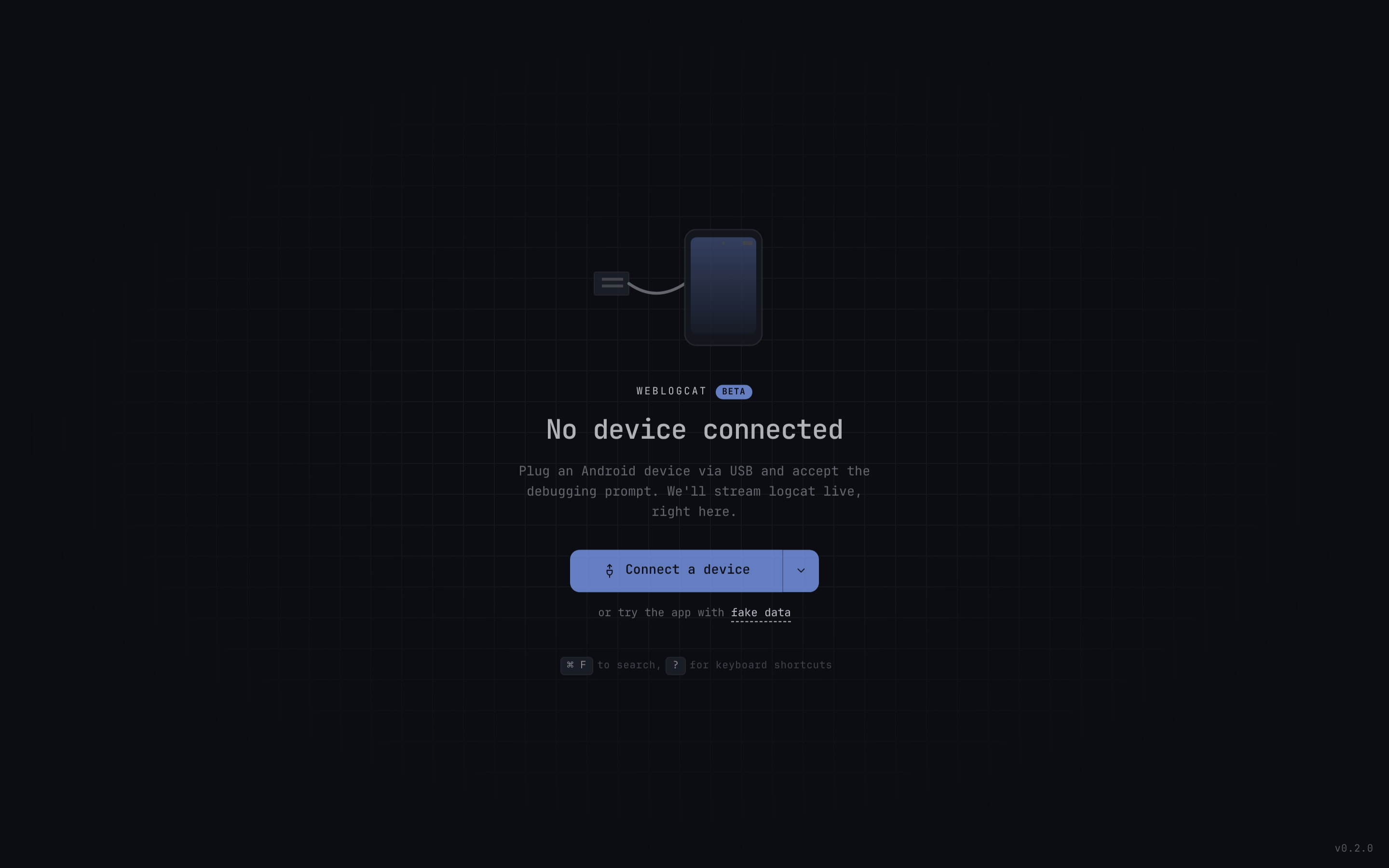
- Plug the device in with a data-capable USB cable.
- Click Connect a device. The browser shows its device chooser; pick your phone.
- The phone shows the standard Allow USB debugging? prompt the first time. Tick Always allow from this computer if you want subsequent connects to be silent.
- The dashboard mounts with a single Logcat tile filling the viewport. The topbar shows the device model and serial; the connection dot is green for real devices and amber for the simulator. Use + Add widget to add more tiles.
The browser remembers the WebUSB grant the same way it remembers any other permission — the second connect from the same browser+device pair is silent.
Switching devices
The device pill in the topbar opens a picker showing every device the browser has paired in this session, plus the simulator if it's been used. Pick a row to switch; the previous stream stays warm in the background so you can flip back without re-authorising.
Troubleshooting
| Symptom | Cause / fix |
|---|---|
| Chooser is empty | Verify USB debugging is on, the device is unlocked, and the cable is data-capable. Replug and reload. |
| Pairing prompt never appears on the phone | Some OEMs hide it behind a notification. Pull down the shade. |
Connect a device is disabled | You're on Firefox / Safari, or the page isn't served from HTTPS / localhost. |
| Connection drops on screen-off | Some manufacturers cut USB after sleep. Disable screen-locked-off behaviour or keep the screen awake. |
| Mirror shows "device not supported" | Mirror needs scrcpy v2.7 capabilities. Older / very locked-down devices may refuse the push. |
If the chooser shows the phone but the connect step fails, check the browser console — the toast message comes from friendlyConnectError() in lib/adb.ts and the underlying error usually points at the cause (timeout, permission denied, USB endpoint busy).
Don't have a phone?
Click fake data on the empty state. The dashboard runs against the simulated stream so every widget renders against in-memory fixtures.
Device Proxy experimental
WebUSB has limits: it can't reach emulators or Wi-Fi-attached devices, it requires exclusive USB access (Android Studio / scrcpy / adb shell can't run alongside), and it isn't in Firefox or Safari. The Device Proxy transport fixes all four — at the cost of a small one-time daemon install.
macOS support
Google doesn't currently ship a macOS build of the daemon, so the Device Proxy can't be set up on macOS today. Tracking at #133.
The dropdown arrow next to Connect a device lets you pick a transport explicitly:
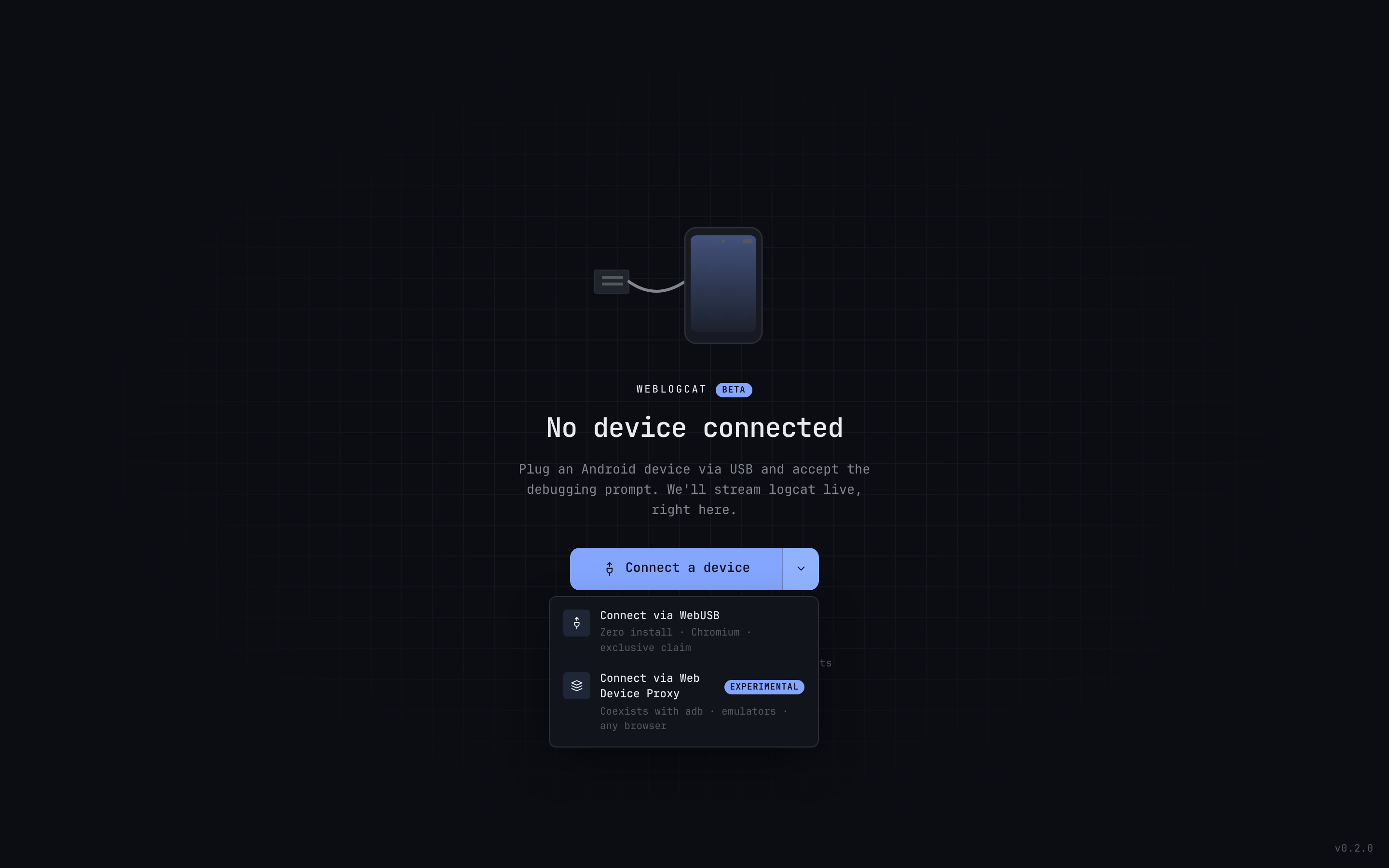
The primary button follows whichever is available in your environment — if the proxy daemon is running on localhost:9167, the primary defaults to proxy; otherwise it falls back to WebUSB.
Connect via the proxy
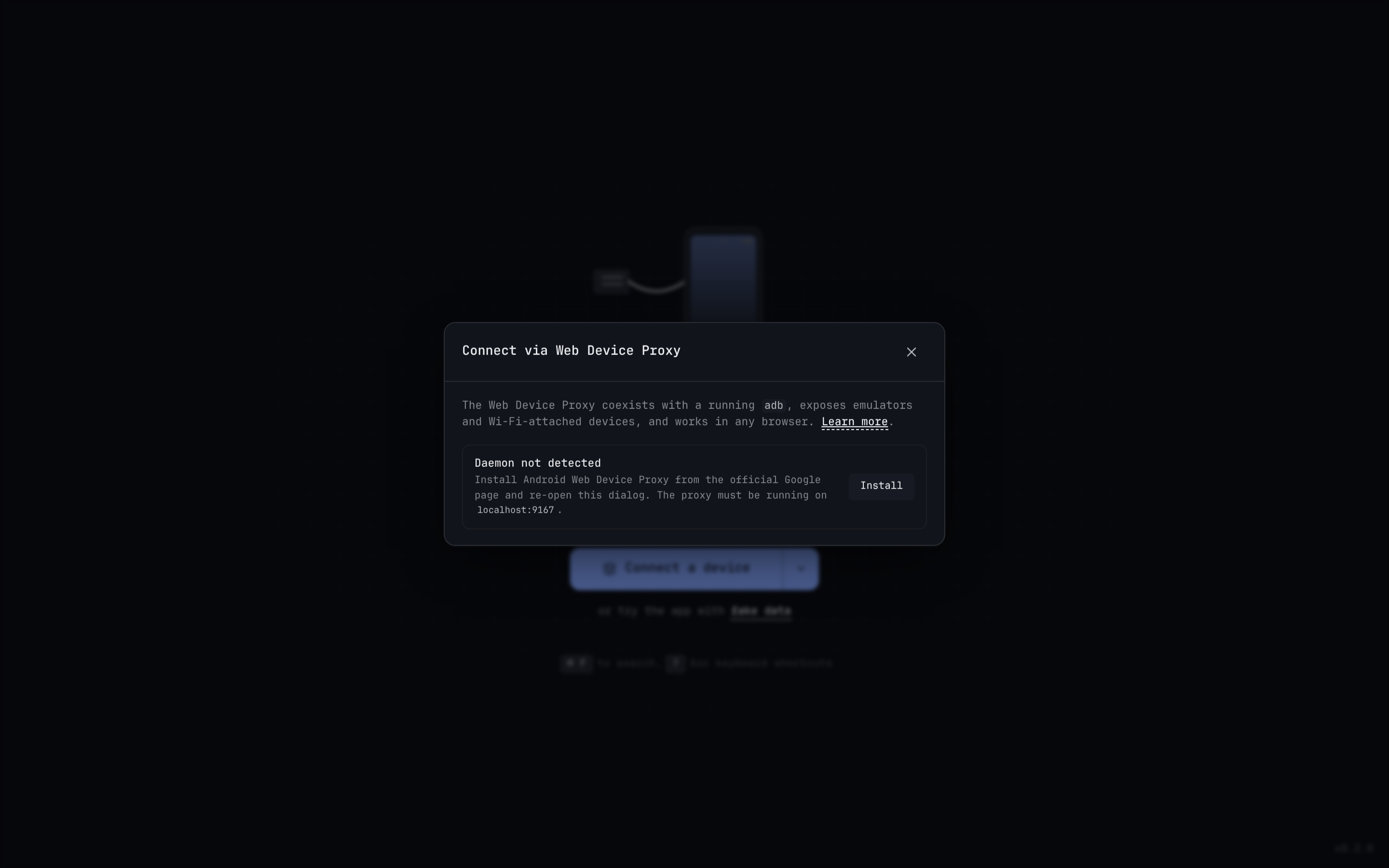
Install the daemon. Pick Connect via Web Device Proxy from the dropdown. If the daemon isn't running, the dialog shows an Install button that opens the official Google download page in a new tab. Run the installer and re-open the dialog.
Authorize WebLogcat. The first time the proxy sees this origin it serves a small Google-hosted approval page in a popup. Click Allow — subsequent visits from this origin are silent.
Pick a device. The dialog lists everything
adb devicesshows: USB phones, emulators, Wi-Fi attachments. Click Connect on the row you want. If a device shows PROXY_UNAUTHORIZED, click Authorize instead — that triggers a per-device approval popup and re-tries the connect once the device transitions to ready.
After connect, the dashboard mounts and behaves exactly the same as under WebUSB — every tile (Logcat, Shell, Dumpsys, Files, Mirror) works without modification.
When to use which
| Need | WebUSB | Device Proxy |
|---|---|---|
| Zero install | ✅ | Requires the daemon |
| Multiple devices visible at once | ❌ (one chooser pick) | ✅ |
Coexist with Android Studio / scrcpy / adb | ❌ (exclusive claim) | ✅ |
| Emulators | ❌ | ✅ |
Wi-Fi-attached devices (adb connect) | ❌ | ✅ |
| Firefox / Safari | ❌ | ✅ (any browser) |
Note
If the proxy daemon is running, adb-server already holds the USB claim — meaning WebUSB will fail with "device already in use" until you stop the daemon (or kill adb-server). That's why the primary button defaults to the proxy whenever it's detected.
Troubleshooting
| Symptom | Cause / fix |
|---|---|
| "Daemon not detected" | Proxy isn't running on localhost:9167. Install or restart it. |
| "Browser blocked the approve popup" | Allow popups for this origin, then retry. The popup is a one-time Google-hosted approval page. |
Device shows OFFLINE / UNAUTHORIZED | Accept the on-device debugging prompt and re-open the dialog. |
| WebUSB suddenly fails with "device in use" | The proxy daemon claimed it via adb. Quit the daemon or pick Connect via Web Device Proxy from the dropdown. |